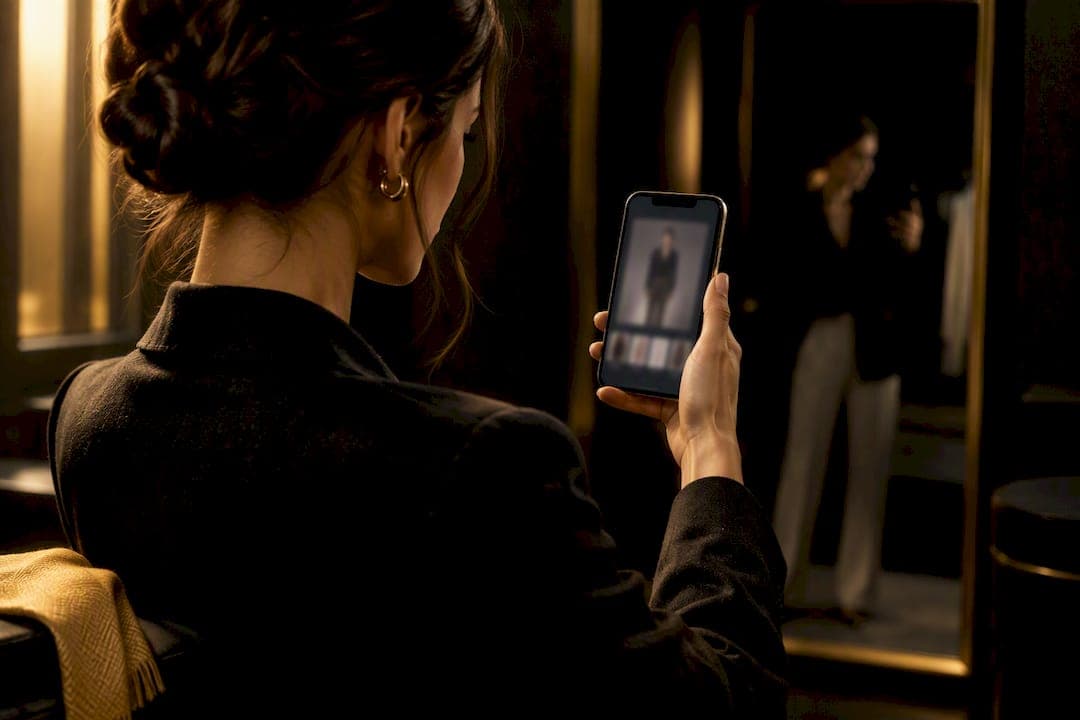
You can try on outfits on your own photo right now using AI virtual try-on apps or web tools, including specialized activewear like cycling gear that benefits from advanced visualization techniques to see fit and reflective details, as detailed in recent design trends in bike gear. Upload a clear, full-body or portrait photo, choose a garment swap or an outfit generator mode, and let the AI render the fit. Results depend heavily on photo quality and lighting, and privacy terms vary by tool, so check both before you upload anything.
TL;DR:
- Using high-quality, well-lit, full-body photos improves the realism and accuracy of virtual try-on results, especially when posing naturally with minimal background clutter.
- Avatar-based try-on tools provide the highest fidelity for full outfits and can be reused, making them ideal for planning multiple looks rather than experimenting with individual items.
- Privacy concerns should be addressed by reviewing each app’s retention terms, opt-out options, and whether photos are shared or stored beyond initial processing.
- Free try-on tools often limit resolution, catalog size, and processing speed, but testing these limits first helps determine if a paid plan offers significant value for ongoing wardrobe planning.
- For best results, retake or adjust your source photos with better lighting, a neutral pose, and plain backgrounds rather than blaming the software for inaccuracies.
Table of Contents
- How Do You Try On an Outfit on a Photo?
- What Are the Steps to Try On Clothes Virtually?
- Why Do Some AI Try-On Photos Look Fake?
- What Happens to Your Photo After You Upload It?
- Should You Use a Free or Paid Try-On Tool?
- Why Mytenue Is Worth Testing for Your Own Photos
- Try Mytenue on Your Own Photo Today
- Privacy and Documentation Pages Worth Checking
- Sources
- FAQ
How Do You Try On an Outfit on a Photo?
Not every AI try-on tool works the same way, and picking the wrong category wastes time. Four types dominate the space right now, each built for a different goal.
- Quick web editors swap a single garment (a jacket, a dress) onto your photo fast. They're great for casual experimentation, like seeing how a red coat looks before you buy it, but fidelity is usually rough around edges and hands.
- Mobile apps with catalog try-on let you browse a retailer's inventory and preview items on your body or an avatar. These work well when you're actively shopping and want a quick gut check before checkout.
- Avatar or personal mannequin services build a reusable digital model of you, then let you layer full outfits, mix pieces, and compare looks side by side. This category produces the highest-fidelity renders because the avatar improves with each use.
- Retailer-integrated try-on lives inside a brand's own site or app, limited to that brand's catalog, useful mainly for verifying fit on a specific purchase.
If you just want to play around with one item, a web editor is fine. If you're planning a whole outfit, whether for a wedding, a work trip, or a weekly wardrobe rotation, an avatar-based tool gives you far more usable output. The virtual fitting room approach has moved well past novelty status for exactly this reason.
What Are the Steps to Try On Clothes Virtually?
Getting a usable result takes four steps, and skipping the prep step is where most people go wrong.
- Pick and prepare your photo. Use a well-lit, high-resolution image, front-facing, full body if you're testing a complete outfit, plain background if possible. Wear fitted, plain clothing underneath so the AI has a clean base to work from.
- Choose your tool mode. Decide whether you want a single garment swap, a full outfit generator, or an avatar-based render. Upload your photo and select the item or style category.
- Adjust fit and color. Most tools let you tweak scale, positioning, and sometimes background. Nudge the garment until shoulders and hemlines line up naturally instead of floating.
- Compare, save, and export. Generate two or three versions, save the ones that look realistic, and export them for shopping decisions or outfit planning.
If a render comes out warped or the color looks off, retake the base photo with better lighting before blaming the tool. Most alignment issues trace back to the source image, not the algorithm.
Pro Tip: Test one outfit at a time before batch-uploading five looks. Fixing photo issues early saves you from redoing every render later.
Why Do Some AI Try-On Photos Look Fake?
Realism comes down to four photo characteristics, and lighting is the one people underestimate most.
- Lighting: Use even, diffuse light, natural window light works well. Avoid strong backlight or harsh side shadows, which confuse the AI's sense of where your body ends and the background begins.
- Pose: Stand neutral and relaxed, arms slightly away from your torso. Crossed arms or a bent elbow blocks the AI from mapping the torso correctly, which is a common cause of warped sleeves.
- Clothing baseline: Wear thin, form-fitting layers underneath. Baggy sweatshirts or bulky jackets in your base photo throw off how new garments overlay.
- Image quality: Shoot at high resolution with a consistent crop and a plain background. Cluttered backgrounds make it harder for the tool to segment your body from everything else in frame, and simple pre-processing like a clean crop often improves output quality noticeably.
If your first render looks off, don't start over completely. Make one small adjustment, better light, a different pose, a plainer background, and re-run it. Iterating in small steps gets you to a usable result faster than retaking the whole photo shoot from scratch.
What Happens to Your Photo After You Upload It?
Your photo typically follows a simple path: you upload it, the app processes it either on your device or in the cloud, and some tools retain the image afterward to improve their models. That retention piece is the part worth scrutinizing before you upload anything personal.
Run through this checklist first:
- Check the app's retention terms. Does it say how long your photo is stored, or is that missing entirely?
- Look for an explicit opt-out from model training. Not every app offers one, and the ones that don't deserve extra caution.
- Confirm there's a clear account deletion process. If you can't find one in two minutes, that's a red flag.
- Check whether your photo gets shared with third parties, and read the platform's privacy terms before you decide.
A few quick safeguards help regardless of which tool you pick: strip metadata from your photo before uploading, use an image without identifying background details, and skim the app's privacy page in the store listing. If something goes wrong or you want to flag a listing, app-store reporting tools exist for exactly that.
Should You Use a Free or Paid Try-On Tool?
Free tiers get you in the door, but they come with real friction points worth knowing upfront.
- Common free limits: watermarked renders, capped resolution, a daily limit on how many try-ons you can run, and a small catalog of items or avatar slots.
- What paid tiers typically add: higher-resolution output, a personal avatar you can reuse across outfits, larger catalogs, and faster processing when servers are busy.
- How to judge ROI: test render quality on the free tier first, check the privacy terms before paying for anything, and confirm you can export images in a format you'll actually use.
- Budget-smart moves: use free trials before committing, buy credits only when you have a specific project (like planning a trip wardrobe), and upgrade selectively rather than jumping straight to the top tier.
If you only try on clothes occasionally, staying free makes sense. If you're planning outfits weekly or building a digital wardrobe, the jump in avatar quality and catalog size on a paid plan tends to pay for itself in saved time.
Why Mytenue Is Worth Testing for Your Own Photos
Most try-on tools stop at a single swapped garment. Mytenue builds full outfit recommendations from your actual wardrobe, then layers in high-quality virtual try-on so you can see the whole look, not just one piece, on your own photo or avatar. That distinction matters if you're trying to plan a week of outfits instead of just previewing a jacket.

The wardrobe-first design also nudges you toward sustainable choices: instead of generating looks purely from a shopping catalog, Mytenue's AI curation mixes what you already own with new pieces, so you buy less and wear more of your closet. Add a planning calendar and a bilingual interface, and it functions less like a novelty filter and more like a stylist that happens to run on your phone.
A fast way to test it: sign up free, upload one clear photo, try a capsule outfit, and check the privacy settings before you upload anything else.
— Ahmed
Try Mytenue on Your Own Photo Today
Mytenue works differently from a one-off garment swap tool: instead of previewing a single item, it builds full outfits from your existing wardrobe and shows them on your photo through high-quality virtual try-on. That means less guessing about whether a new piece actually works with what you own.
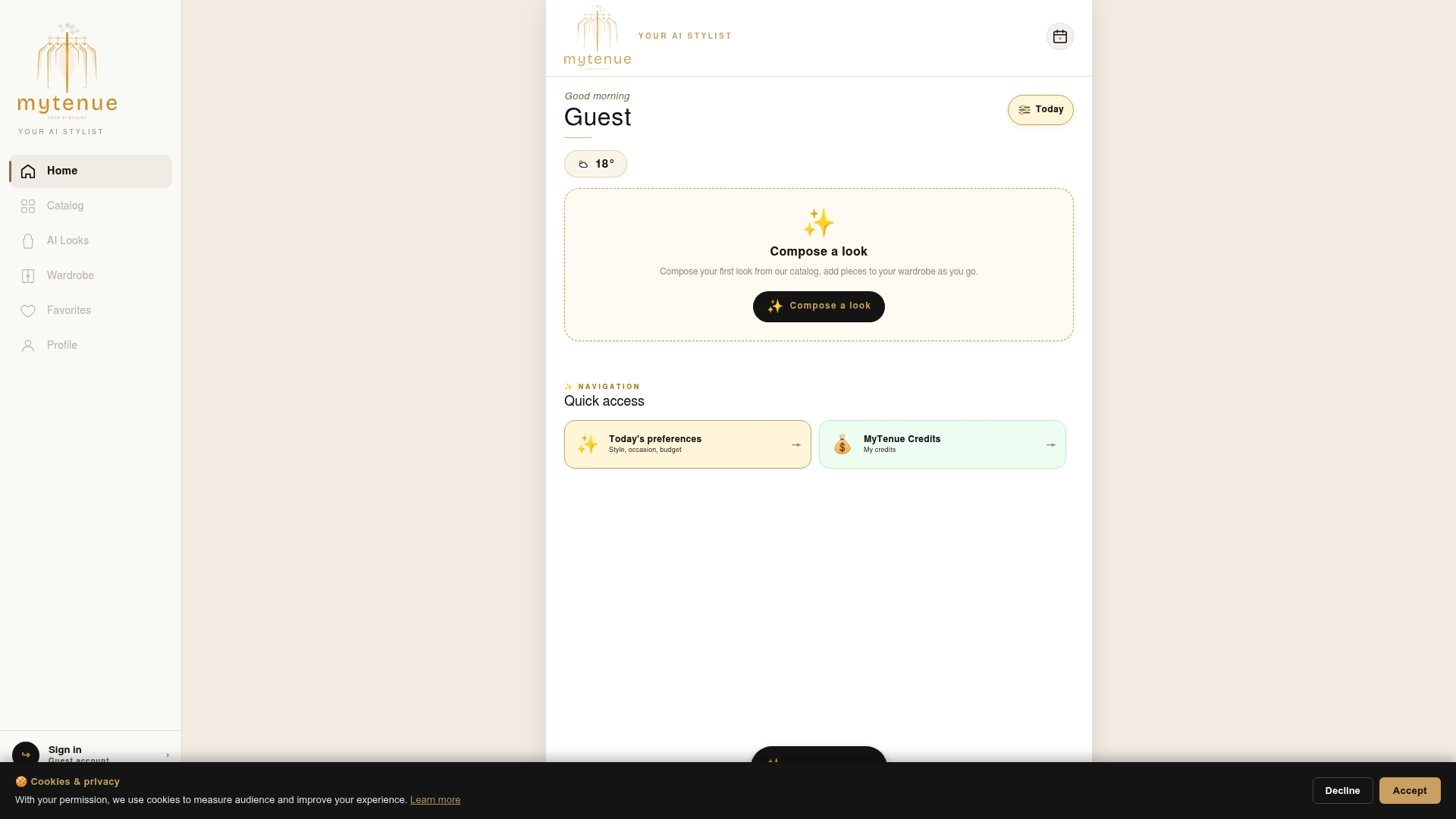
Getting started costs nothing. The Free plan lets you upload a photo and try outfit suggestions before you decide whether to upgrade. If you want higher-resolution renders, a personal avatar, and a bigger catalog, the Basic plan runs €5.99 per month, with Premium and Gold tiers available for heavier use. Before uploading, take a minute to check the app's privacy settings, standard practice for any tool that processes your photo. Head to the Mytenue app page and upload your first photo to see a complete look, not just a single swapped piece.
Privacy and Documentation Pages Worth Checking
A few pages are worth bookmarking before you upload personal photos anywhere:
- Google Privacy & Terms, for how uploaded images may be used or retained.
- Report content on Google Play, if you need to flag an app or check its listing.
- Android Developers, for background on how apps handle on-device versus cloud image processing.
Sources
FAQ
How Do I Find an Outfit Using a Photo?
Upload your photo into an AI virtual try-on app or web tool, then select a garment swap or a full outfit generator mode. Tools built around wardrobe curation, like Mytenue, can also suggest complete looks based on items you already own rather than just one piece at a time.
How Do I Use AI to Try On Clothes?
Choose a tool, upload a clear, well-lit photo, and pick either a single garment or an outfit generator. Adjust fit and color if the tool allows, then compare a few versions before saving the one that looks most natural.
How Can I Change the Outfit on a Photo?
Most apps let you re-upload the same base photo and cycle through different garments or full looks without starting over. If the fit looks off, adjust the pose or lighting in your source photo rather than fighting with the render settings.
What App Can I Use to Identify Clothing?
Catalog-based try-on apps typically let you browse items by category and preview them directly on your photo. For a broader approach that also plans outfits around your own wardrobe, an outfit curation tool works better than a single-item identifier.
Are Free Virtual Try-On Tools Safe to Use?
Safety depends on the app's privacy terms, not on whether it's free. Check the retention policy and opt-out options before uploading, and review the platform's privacy terms if anything is unclear.