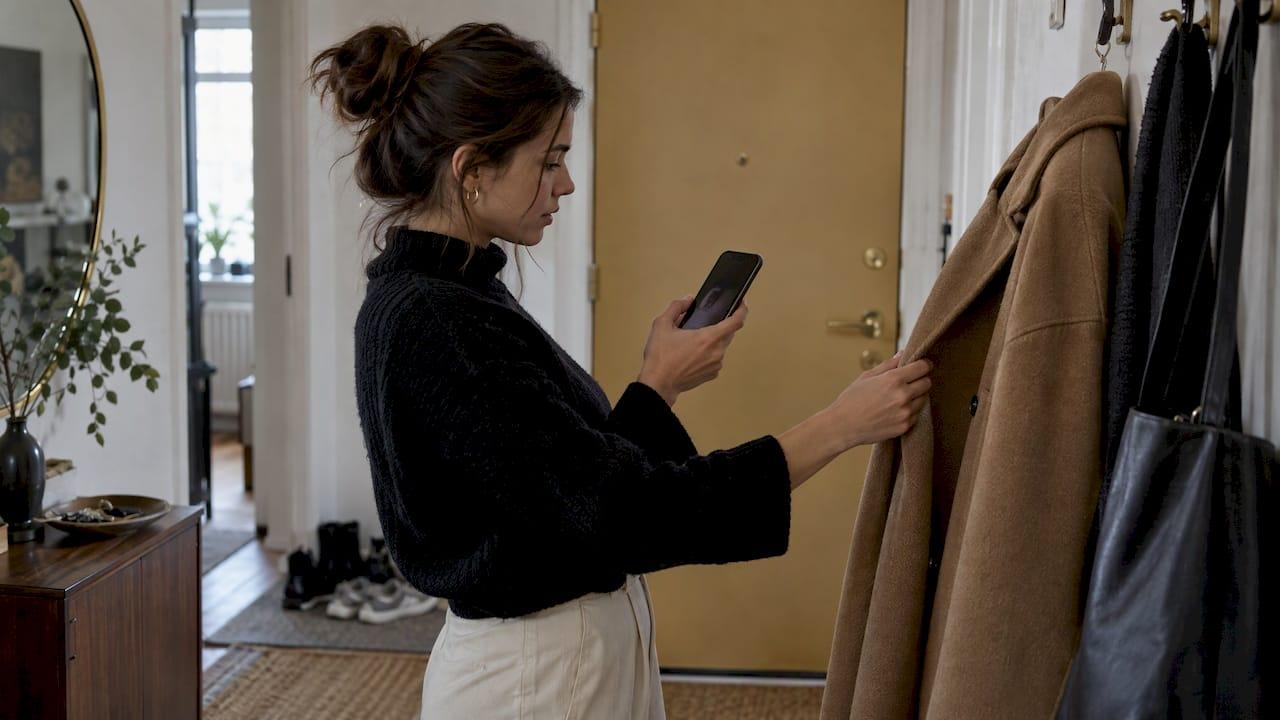
You found the look. Now keep it. The fastest way to save an outfit as a photo is a screenshot: on iPhone, press volume up and the side button together. On Android, press power and volume down together. Then sort the image into an album and attach it to a calendar event, so the outfit shows up on the day you need it.
This guide covers all of it. Quick captures. Cleaner images. Albums that work. Calendar reminders. And a smarter way to build outfits from clothes you already own.
TL;DR
- Screenshot is the quickest route on both iPhone and Android. Check the dedicated "Screenshots" album afterward.
- On Android 12 or later, the "Capture more" option grabs a whole page in one image, handy for a full outfit on a fashion site.
- Crop out menus and status bars before you keep a picture. It makes your outfit library easier to read.
- On iPhone, attach the outfit photo to a calendar event. In Google Calendar on Android, add notifications at several times before the event.
- In Mytenue, we generate editorial flat-lay outfit images from your own wardrobe and let you plan looks in a calendar.
Table of Contents
- Save an outfit as a photo on iPhone
- Save an outfit as a photo on Android
- Save an outfit from Instagram or social media
- Make the photo cleaner
- Organize saved outfit photos so you can find them
- Our perspective
- Turn outfit photos into a calendar plan
- Set reminders for planned outfits
- If calendar entries or reminders go wrong
- Build outfits from your own closet with Mytenue
- A weekly routine that really sticks
- FAQ
- Sources
Save an outfit as a photo on iPhone
On iPhone, the screenshot is your friend. According to SFR ACTUS, you press the volume up button and the lock button at the same time. A thumbnail appears. Tap it to edit the capture, then save it to Photos or Files.
The exact button combo depends on your model. On an iPhone with Face ID, it is the side button plus volume up. On a model with a Home button, it is the Home button plus the side button, as Picbackman describes. The result lands in Photos either way.
A few habits make the screenshot more useful:
- Capture the whole look on screen, not just the jacket.
- Open the thumbnail right away and crop. Menus and buttons are noise.
- Take one extra shot of a detail you love: the shoes, the belt, the texture.
Save an outfit as a photo on Android
Android is just as fast. On version 6.0 and later, SFR ACTUS says to press the power and volume buttons together for about two seconds. The capture is saved on its own.
Brands differ a little in the gesture. Some phones also offer a swipe or a quick-settings tile. Try the buttons first. They work almost everywhere.
Capture a full outfit page
A fashion page is often longer than your screen. The outfit sits at the top, the shoes at the bottom. Annoying.
On Android 12 or later, a "Capture more" option appears after you take a screenshot. SFR ACTUS notes that it saves a whole web page or chat in a single image. Perfect for a complete outfit on a fashion site. One image. Nothing missing.
Save an outfit from Instagram or social media
Social feeds are where many outfit ideas start. The screenshot works there too. On iPhone, it saves to Photos and you can crop out the interface later, as Picbackman explains.
You can also save the image itself. PictureFactory describes the iPhone route: copy the post link, open it in Safari, press and hold the image, then choose "Save Image". The picture appears in your Photos album automatically.
Simple rule: credit the creator if you share it, and keep the saved image for your own inspiration.
Make the photo cleaner
A sloppy screenshot is hard to reuse. A clean one is a mini lookbook entry.
PictureFactory suggests going further for a polished result. Their guide recommends hiding the status bar: through developer settings on Android, or Control Center on iOS. Then crop precisely in an editing app such as Snapseed and export as a JPEG at full quality, or as a PNG.
You do not need all of that for every look. Here is a practical shortcut:
- Screenshot the outfit.
- Crop to the clothes only.
- Keep the original proportions so nothing looks stretched.
- Rename or caption it if your photo app lets you.
Five seconds. Done.
Organize saved outfit photos so you can find them
Saving is half the job. Finding is the other half.
By default, screenshots go to a dedicated spot. On Android, they sit in the "Screenshots" folder of the Gallery or Google Photos. On iPhone, they appear in an album called "Screenshots" when you scroll down in Albums. Both details come from SFR ACTUS.
That album fills up fast. Make a system:
- One album per context. Work, weekend, evening, travel.
- One album per season. Light layers, coats, summer.
- A "to try" album. Looks you want to build from your closet.
- A monthly clean-up. Delete duplicates. Keep the best.
Name albums with simple words you would actually search. "Office" beats "Misc 3".
A photo is only an idea
Here is the catch. A saved photo shows someone else's clothes. Your closet is different. The real win comes when the idea meets what you own.
That is why we like starting from your wardrobe. Our guide on how to remix what you own shows the method. And if you want your pieces in digital form first, see the step-by-step wardrobe digitization guide.
Our perspective
We built Mytenue around one idea: a saved outfit should help you get dressed, not sit in a camera roll.
Screenshots are great for capturing inspiration. But a folder of 300 images creates its own stress. You scroll. You hesitate. You still wear the same jeans.
That is why our AI styling starts from your own wardrobe. You digitize your pieces. We suggest outfits that match color, fabric, style and occasion. You can see the result on your personal avatar with virtual try-on. And you get an editorial flat-lay image of the look, ready to review.
Then comes planning. Our app includes an outfit calendar, so a look has a day. No more morning panic.
Inspiration photos still have a place. Keep them. Use them as a mood board. Then let your styliste IA turn the mood into outfits you can really wear.
Ahmed
Turn outfit photos into a calendar plan
A look with a date gets worn. Here is how to link photos to your calendar.
Attach the photo to an event on iPhone
Apple's official iPhone guide explains that you can add an attachment, including an outfit photo, to a calendar event. Tap the event, tap Edit, choose "Add Attachment", locate the file and confirm.
Try it for a job interview, a wedding or a Monday meeting. Create the event, attach the photo, done. The look is waiting for you.
Export an event as a file
Some calendar apps can share an event as an iCalendar (.ics) file. For example, OneHaus documents that you tap the share icon in the event header, then send the file by message or email, or add it to another calendar app. It is a handy way to send a plan to a partner or to another device.
Create an event from a screenshot
Sometimes the screenshot is the invitation. On iOS 26, Yahoo Tech reports that Visual Intelligence can read a screenshot of an event and offer "Add to Calendar", filling in the detected details. Useful when the dress code is in the invite.
Set reminders for planned outfits
Planning without a nudge fails. A reminder fixes that. If you use Google Calendar on Android, two features matter.
Add a reminder
According to Google's Android guide, you tap the plus icon at the bottom of the screen, choose Reminder, and type the content. Then set the date, switch off "All day" if you want a specific time, set the time and tap Save.

Write the reminder like a note to yourself: "Navy blazer, white shirt, loafers. Iron tonight."
Add notifications to an event
For events, tap "Add notification" and choose how many minutes before. The same Google page says you can tap "Custom notification" for extra alerts, and that the default is 10 minutes before.
You can stack several. One idea: one the evening before, to prepare and iron, and one an hour before, to get dressed. A guide on Google Assistant reminders gives the same example of 1 day before and 1 hour before.
A simple outfit reminder routine
- Sunday evening: choose your looks for the week.
- Attach or describe each look in the calendar event.
- Add a notification the night before.
- Add a second one an hour before you leave.
- Wear it. Note what worked.
If you like keeping notes, our outfit journal method takes one minute per look and gives weekly style insights.
If calendar entries or reminders go wrong
It happens. A look does not appear on your second device. A notification stays silent. Check these points, drawn from Flexibits support:
- The same calendars are enabled and visible on all devices.
- The default calendar is the same one everywhere.
- A new test event created on one device appears on the others. Give it a few minutes to sync.
Still stuck? Use the web version of your calendar to find the faulty device. With iCloud, sign in at icloud.com and open Calendar. With Google, go to calendar.google.com. Create an event and see whether it shows up on every device.
Also check that the photo itself is where you think it is. A screenshot should be in the "Screenshots" album. If not, look in Google Photos, Gallery or Files.
Build outfits from your own closet with Mytenue
Saving photos is a good start. Wearing great outfits is the goal.
Mytenue is your AI stylist for iOS and Android. Here is what we offer:
- Outfit recommendations from your own wardrobe
- Virtual try-on with a personal avatar
- Editorial flat-lay outfit images
- Daily suggestions adapted to the weather
- AI analysis of color, fabric, style and occasion
- Wardrobe digitization and organization
- Outfit planning with a calendar
- A bilingual interface, French and English
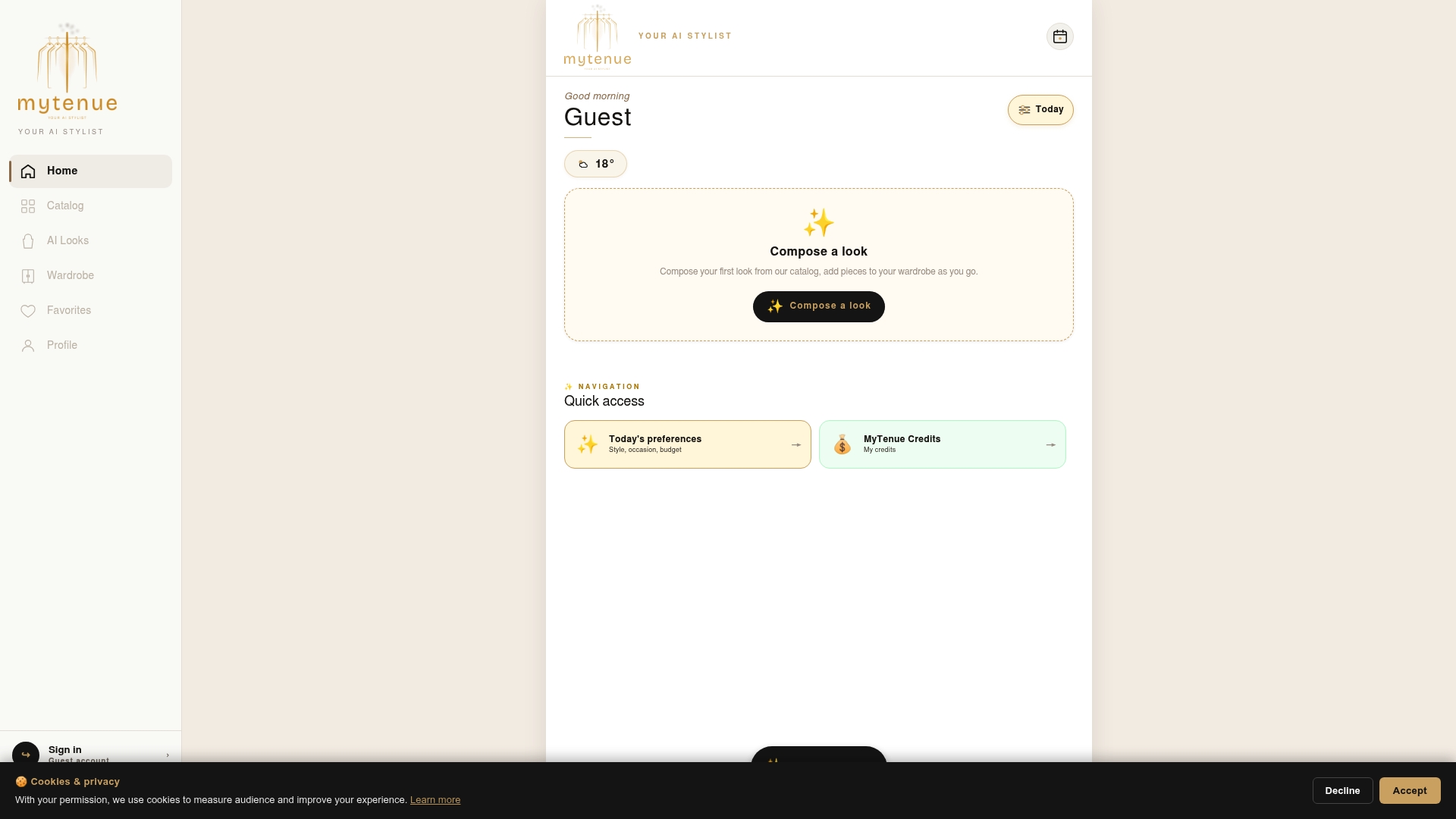
There is a free version to start with. Paid plans are Basic at €5.99 per month, Premium at €9.99 per month and Gold at €16.99 per month. See every plan on the Mytenue app page and download the app for iOS or Android.
New to the idea? Read how AI outfit curation works step by step. Want to photograph your pieces well? Our guide on photographing clothes for AI try-on shows four angles that work.

A weekly routine that really sticks
Tools help. A habit helps more. Try this rhythm for a month.
Once a week (10 minutes)
- Review your saved inspiration photos.
- Pick two or three looks you could recreate with your own clothes.
- Put them in the calendar with a reminder.
Once a month (15 minutes)
- Delete screenshots you no longer love.
- Move the best ones into themed albums.
- Note which looks you wore and which you skipped.
Once a season
- Update your wardrobe list with new pieces.
- Retire what you never wear.
Small steps. Real change. You will spend less time choosing and more time enjoying what you wear.
FAQ
What is the fastest way to save an outfit as a photo?
A screenshot. On iPhone, press volume up and the lock button together. On Android, press power and volume together for about two seconds. The image is saved automatically on Android, and you can edit and save it from the thumbnail on iPhone.
Where do my outfit screenshots go?
On iPhone, they are in the "Screenshots" album, found by scrolling down in Albums. On Android, look in the "Screenshots" folder of Gallery or Google Photos. From there, move the best ones into your own themed albums.
Can I attach an outfit photo to a calendar event?
Yes, on iPhone. Open the event, tap Edit, choose "Add Attachment", then select your photo. Apple documents these steps in its official calendar guide for iPhone. Add a notification as well so the event reminds you in time.
How many reminders should I set for an outfit?
Two work well for most people: one the day before and one an hour before. Google Calendar on Android lets you add several notifications to the same event. The default is 10 minutes before, which is often too short for getting dressed.
How do I capture a long fashion page in one image?
On Android 12 or later, take a screenshot and tap "Capture more" when it appears. It saves the whole page as one image. Then crop it so only the outfit remains.
Sources
- SFR ACTUS: how to take a screenshot on your smartphone
- Picbackman: save Instagram photos to your iPhone or Android gallery
- PictureFactory: save your photos from Instagram
- Apple: create and edit calendar events on iPhone
- OneHaus docs: calendar and events
- Yahoo Tech: iOS 26 productivity feature
- Android: Google Calendar features
- Add reminders to Android Calendar using Google Assistant
- Flexibits support: calendar sync