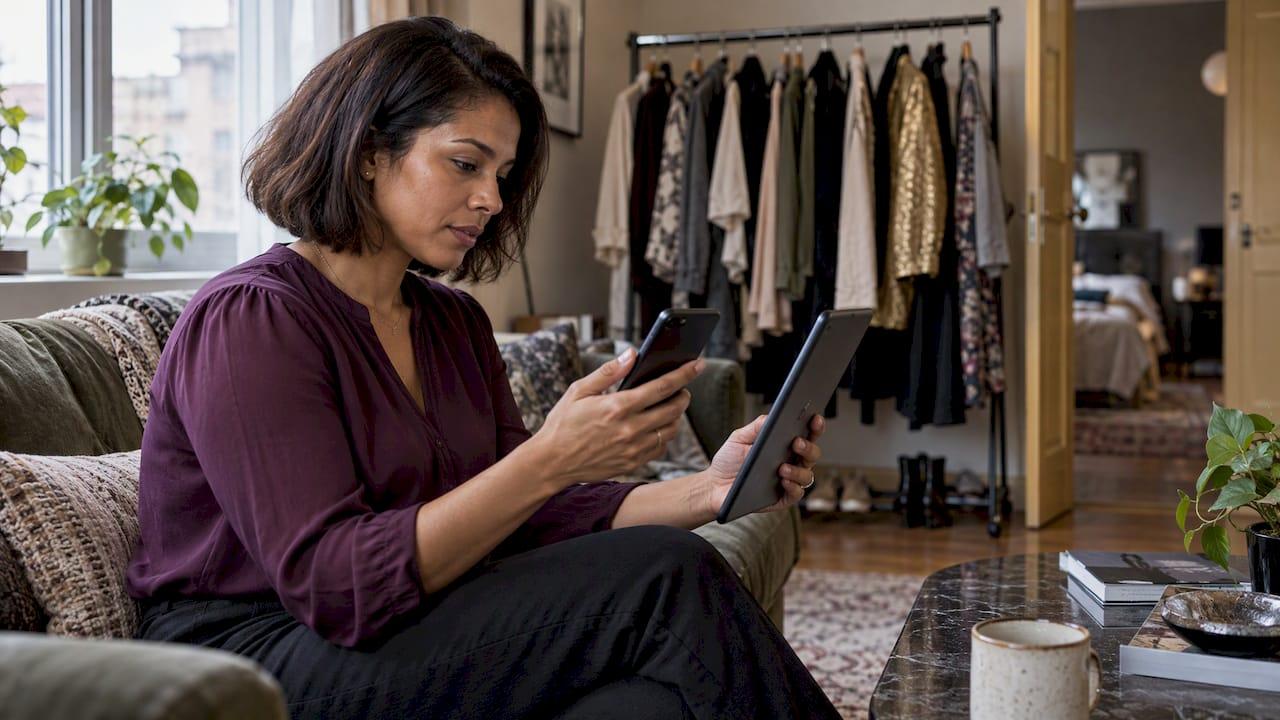
Cross-device wardrobe sync means your digital closet lives in your account, not on one phone. You photograph your clothes once. Then your items, outfits and plans follow you to any phone, tablet or browser where you sign in. Here is how it works, how to set it up between Android and iOS, and what to check when something looks missing.
TL;DR
- Sync works through an account: the same login on each device shows the same wardrobe.
- Digitize once, on the device with the best camera, then check the result on your other screens.
- Mytenue runs on iOS and Android, plus the web, so a switch of phone does not mean starting over.
- Before you rely on any sync, check your internet connection, your storage and your account login.
- Wardrobe photos are personal data. In France, the GDPR (RGPD) and CNIL guidance apply to apps that handle them.
Table of Contents
- What cross-device sync means for a digital wardrobe
- Why it matters in daily life
- Step 1: digitize your wardrobe once, well
- Step 2: set up sync between Android and iOS
- What to check before you rely on any sync
- When something looks missing or out of date
- Keeping the closet tidy across devices
- Photos, privacy and your rights in France
- Our perspective
- Plans and what you get
- Try it on your own devices
- FAQ
- Sources
What cross-device sync means for a digital wardrobe
A digital wardrobe is a catalog of what you own. Each piece has a photo and a few details: category, color, fabric, style, occasion. Sync is the part that keeps this catalog identical everywhere.
Without sync, your closet sits in one place. Lose the phone, change the phone, or open the app on a laptop, and the list is gone or out of date. With sync, the data sits in your account. Each device is a window onto the same closet.
What can travel between devices:
- Item photos and details. The jacket you scanned on your phone shows up on the web.
- Outfits you saved. Looks you built on Monday are there on Friday, on another screen.
- Planning. Outfits attached to calendar days stay in step.
- Preferences. Your style choices, sizes and budget guide the suggestions wherever you sign in.
- Your avatar. The personal mannequin used for virtual try-on is tied to your profile, not to one handset.
What sync does not do: it does not fix a messy catalog. Duplicates, blurry photos and wrong categories get copied everywhere. So the cleanup you do at the start pays off on every device.
Why it matters in daily life
People choose outfits at odd moments. On the train, at the wardrobe at 7 a.m., on a laptop while planning a trip. A closet that follows you handles all three.
Some common situations:
- You upgrade your phone. Sign in and your closet is back. No second round of photos.
- You use an iPhone and your partner uses Android. Each has a separate account and a separate closet, on the platform they like.
- You plan on a big screen. A trip packing list or a week of work outfits is easier to arrange on a laptop, then checked on your phone while you dress.
- You shop. In a store, you open the app and ask whether the new piece matches what you own.
For busy parents and young professionals, this is the whole point. Less time deciding, fewer duplicate buys, one source of truth.
Step 1: digitize your wardrobe once, well
Sync copies what you give it. Start with a clean catalog.
Our own guides cover the groundwork in detail. If you want the full method, read how to digitize your wardrobe step by step. If you prefer a quick start, scanning 10 to 15 items in one to two hours is a realistic first session. And for a structured plan, the closet inventory workflow in seven steps takes you from an empty rack to a digital list.
A short version:
- Pick a start batch. Fifteen items you wear often. Not the whole closet.
- Use daylight. Plain background, flat or on a hanger.
- Shoot consistently. Same distance, same angle. Our guide on photographing clothes for AI try-on explains the four angles that work best.
- Check the tags. Category, color, fabric, occasion. Fix errors now.
- Do the rest in weekly waves. Ten items a day beats a Sunday marathon.
Then turn that batch into looks. Our guide to organizing your wardrobe shows how a first set of items can lead to AI outfits within two weeks.
Step 2: set up sync between Android and iOS
The principle is the same on both systems. One account, one login, every device.
On your first device
- Download the app from the Mytenue app page. It is available on the App Store and Google Play.
- Create your account with an email you will keep for years. Not a work address you may lose.
- Digitize your first batch.
- Confirm that items appear in your closet list before you leave the app.
On your second device
- Install the app from the right store, or open the web version in a browser.
- Sign in with the same account. Do not create a new one.
- Wait for the closet to load. On a slow connection, give it a minute.
- Compare: same number of items, same outfits, same plan.
If you move from Android to iPhone, the logic does not change. The account is the bridge, and the operating system does not matter. This is why we offer the app on both platforms, with mobile and web access, and an interface in French or English.
Quick setup checklist
| Check | Why it matters |
|---|---|
| Same login on every device | A second account means a second, empty closet |
| Internet connection on first load | Your closet has to be fetched from your account |
| Latest app version | Older versions may not show newer features |
| Enough free space on the phone | Photos and avatar images need room |
| Language set to French or English | The interface is bilingual, pick the one you prefer |
What to check before you rely on any sync
Sync depends on things outside the app. Three are worth a minute.

Internet access. Sync needs a connection to move changes. Apple's own terms make the same point for its cloud service: it may require compatible devices, internet access and certain software. The idea applies to any cloud-based tool.
Storage. If you also back up your phone to a cloud, remember the limits. Apple's terms state that an account comes with 5 GB of iCloud storage, or 1 GB for web-only accounts. If you go over, Apple may delete data above the limit after 30 days' notice, according to the iCloud terms for France. Wardrobe photos add up fast, so keep an eye on your phone backups, and make sure the photos you care about are saved in your app account too.
Your account. Know which email you used. Know how to reset the password. If you decide to leave, you can use the account deletion page, and the Terms of Use explain how the service works.
When something looks missing or out of date
Most sync problems are small and fixable. Work through them in this order.
- Check the account. Are you signed in with the same email on both devices? This is the cause more often than any bug.
- Check the connection. Switch between Wi-Fi and mobile data. Reopen the app.
- Refresh. Close the app fully, then open it again. On the web, reload the page.
- Update. Install the latest version of the app on both devices.
- Look at the item itself. A piece that was never saved will not appear anywhere. Open the closet on the device where you added it and confirm it is there.
- Wait, then compare. After a long session of scanning, give the app a few minutes with a good connection.
If you edited things while your phone had no signal, such as on a train or in a basement, reconnect and open the app before you edit the same items on another device. Editing the same piece on two screens at once is the easiest way to confuse yourself about which version is current.
If an item is still missing after these steps, contact support through the app page, and mention the device, the app version and the item.
Keeping the closet tidy across devices
A synced closet is a shared tool between your phone, your tablet and your laptop. A few habits keep it clean.
- Name things the same way. "Navy blazer" beats "blazer 2".
- Retire what you no longer wear. Removing an item once removes it everywhere.
- Add new pieces on the day you buy them. Photograph before you cut the tags, not three months later.
- Review monthly. Five minutes to spot duplicates and wrong tags.
- Use one main device for scanning. Do the photo work on the phone with the best camera, and use other screens to plan and browse.
The cleaner your data, the better our AI can judge color, fabric, style and occasion compatibility. For a deeper look, see our explainer on AI wardrobe analysis and the best practices for AI wardrobe personalization.
Photos, privacy and your rights in France
A wardrobe app holds photos, and sometimes an avatar. That is personal data, and you should know who handles it and how.
In France, the CNIL, the data protection authority, published a recommendation on mobile applications on 8 April 2025. It states that the RGPD applies to all personal data processing carried out by the application. It also says users must be informed, and must consent before an app reads or writes on their device, unless the action is strictly necessary for a service they asked for.
The same document stresses that the phone is a personal and intimate device. Each person should control what data apps can reach, and sensors such as the camera can be intrusive. In practice:
- Check camera and photo permissions in your phone settings. Grant what the app needs to scan your clothes.
- Read the terms. Our Terms of Use and Terms of Sale are public.
- Know your exit. You can request account deletion at any time through the account deletion page.
- Keep editing private. Our AI outfit editor is built wardrobe first, with privacy-aware edits.
Our perspective
We built Mytenue around one idea: your wardrobe should work for you, wherever you are.
A closet app that stays on one phone is a notebook. A closet that follows your account is a stylist. You scan a piece once. After that, our AI uses it everywhere: in daily suggestions adapted to the weather, in virtual try-on on your personal avatar, in flat-lay images, in the calendar where you plan your week.
That is why we offer iOS, Android and the web. Your life does not happen on one screen, so your wardrobe should not either. A parent can plan on a laptop in the evening and check the look on a phone in the morning. A student can start on a budget with the free version and grow into more features when it makes sense.
Our advice is simple. Start with fifteen items you wear. Tag them carefully. Sign in on a second device. Then let the AI do the matching. Wardrobe first, then new pieces only where they add something.
Ahmed
Plans and what you get
Sync is part of using your account across devices. What changes between plans is the depth of the experience. Published monthly prices:
| Plan | Price |
|---|---|
| Free | No published price |
| Basic | €5.99 per month |
| Premium | €9.99 per month |
| Gold | €16.99 per month |
You can start free, see how your closet looks on your devices, and move up when you want more. The app offers wardrobe digitization and organization, AI outfits from your own pieces, virtual try-on with a personal avatar, weather-based daily suggestions, editorial flat-lays and a calendar for planning, plus a premium catalog with loyalty credits. Check the plans page for what each tier includes today.
Try it on your own devices
Your AI stylist is one download away. Install Mytenue on iOS or Android, scan your first fifteen items, then sign in on a second screen and watch your closet appear. Dressing, sublimated.
Scan the QR code or head to mytenue.com/app for the App Store and Google Play buttons.
Still deciding? Our look at the best OOTD app for everyday style shows how daily outfits work, and predictive fashion technology explains where the AI is heading.
FAQ
Can I use my wardrobe on both an iPhone and an Android phone?
Yes. Mytenue is available on iOS and Android, and on the web. Sign in with the same account on each device and your closet is the same. The operating system does not matter, only the account does.
Do I need to scan my clothes again on a new phone?
No. Your items live in your account. Install the app on the new phone, sign in, and wait for the closet to load on a good connection. Keep the same email you used when you first signed up.
Why does an item not appear on my second device?
Start with the basics: same account, good connection, latest app version. Then close and reopen the app. If the piece was added on another device, open it there and confirm it was saved. If it is still missing, contact support with the device and version.
Is my phone backup enough to protect my wardrobe photos?
A phone backup is useful, but it has its own limits. For example, Apple's iCloud terms mention 5 GB of storage on an account, and data above the limit can be deleted after 30 days' notice. Your Mytenue account keeps your closet tied to your login, which is what lets it appear on other devices.
What rights do I have over my wardrobe data in France?
The RGPD applies to personal data processed by mobile apps, and the CNIL expects users to be informed and to consent before an app accesses their device. You can read our terms and ask to delete your account through the account deletion page.